
Website building
Website Redesign Without Losing URLs or Content: A Professional Migration Checklist
A website redesign is more than a new look. A practical guide to mapping pages, moving URLs, checking content, and testing the inquiry path before and after launch.
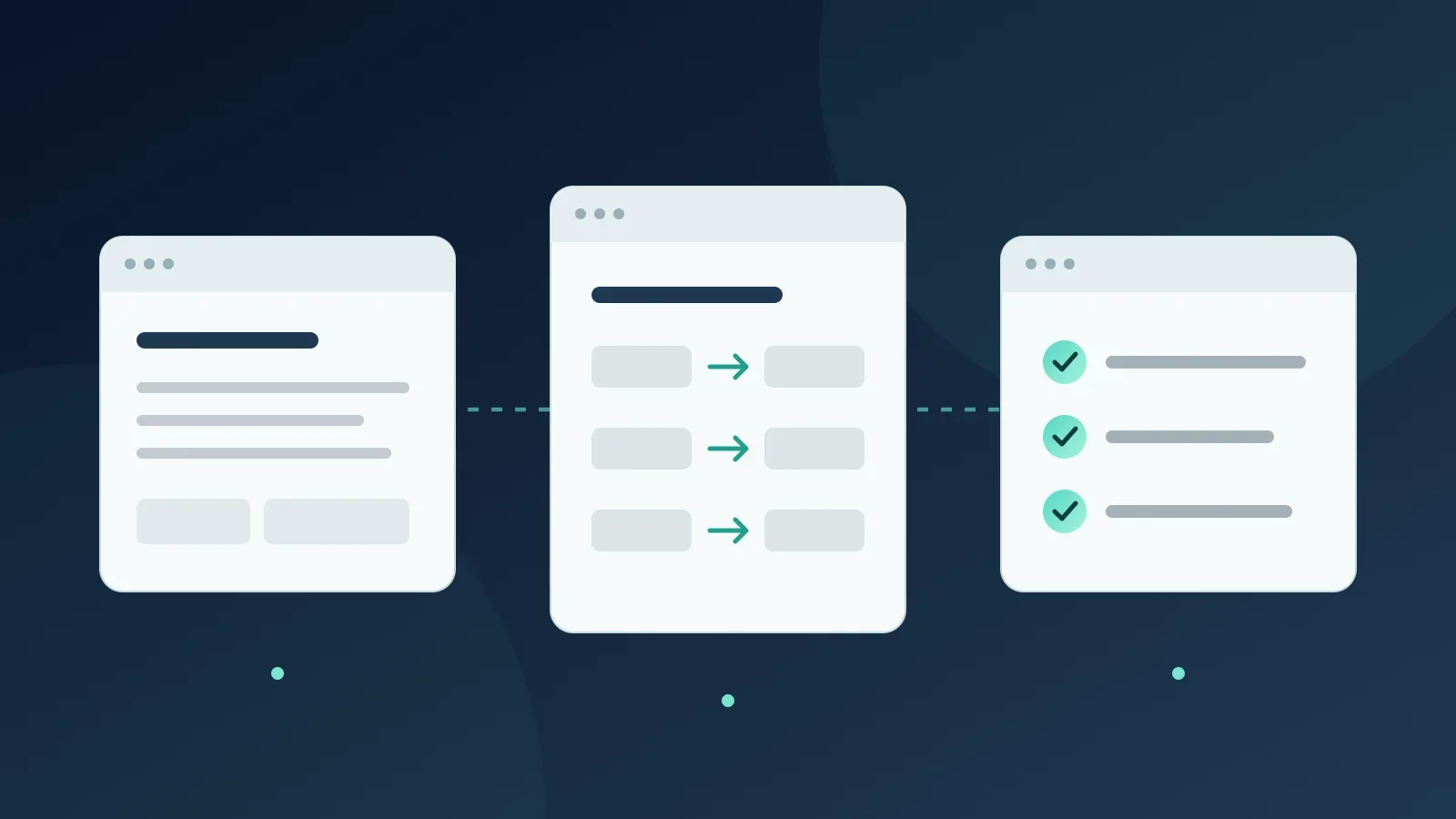
A new website can look great and still miss what the previous site was already doing well. A customer arriving from an old link may land on an error page. A useful article may disappear while the content is being moved. A form that looks fine on screen does not necessarily send the inquiry to the right place.
That is why a website redesign is not only a design project. It is also a process of preserving information, testing user paths, and handing over responsibility. This guide is for business owners who already have a website and want to improve it without starting their relationship with customers from scratch. It offers a workflow for reducing mistakes, not a promise to keep rankings or grow traffic.
Start with a Decision: What Are You Actually Replacing?
Before sketches and mockups, write down what is not working today. Is it hard to explain your services? Is important content buried in the menu? Does updating a page require contacting a developer? Maybe the site is clear and useful, and only some of the screens need a refresh.
There is a difference between a design change, a move to a new content management system, a change of URLs, and a change of domain. You do not have to do them all at once. If there is no business or technical reason to change the URL of a useful page, consider keeping it. That makes it easier to know what changed and what needs testing.
The kickoff document can be short: what you are improving, what you are keeping, what you are not touching, and who approves each decision. In a business website project, this document helps turn a general wish for "a modern site" into a result you can verify.
Build an Inventory Before You Delete or Move Anything
Start with a list of your existing pages. You can cross-check the content management system, the sitemap, and Search Console data, if you have access to the right property. Do not stop at the pages you see in the menu: articles, downloadable files, pages that campaigns point to, and images may all be part of how the business operates.
Next to each URL, note what is on the page, who it helps, and what you want to do with it. Three useful decisions are keep, improve, or reconsider. "Reconsider" is not permission to delete. Even a page that does not get many visits may explain an important service or support a customer who is already in a sales process.
It is also worth adding an owner to the list. Who checks that the listed price is still correct? Who approves using a customer testimonial? Who knows whether an old document is still valid? These are content and business questions, not only development questions.
When a URL Changes, Define an Exact Destination
For every URL that changes, you need to decide where it goes. Instead of redirecting the entire old site to the homepage, match each old page to the destination that answers a similar need. A simple migration map includes the old URL, the new URL, the reason for the change, and the test result.
For example, a page about a specific service should lead to the updated page for the same service, if there is one. If you discontinued a service and there is no relevant replacement content, do not hide that decision behind an unrelated destination. Ask whoever is running the migration to set up the appropriate behavior and document it.
For a permanent move, Google recommends a permanent server-side redirect, usually 301 or 308. Ideally the old link should lead directly to the final destination, not through a chain of intermediate URLs. Google's explanation of redirects.
A redirect does not replace updating the links inside the site. Check the header, the footer, the buttons, the service links, and the links within articles. Readers should not feel like they are passing through the previous version with every click.
Check the Content, Not Just the Page Count
The same number of pages before and after does not prove the migration succeeded. Open an important page in both versions and compare: Was the explanation that helps customers decide preserved? Did the FAQs disappear? Is there a heading left without the text beneath it? Does the link to download a document still work?
It helps to split the review into two lists. The first includes information that must be preserved, such as a service description, contact details, and useful professional content. The second includes planned improvements, such as clearer wording or a new order of sections. Separating them prevents an accidental loss from being presented as a design change.
Not every old sentence has to stay. Incorrect information should be fixed, and duplicate content calls for a decision. But a change like that should be intentional, not the result of a field that did not carry over to the new system.
Before Launch: A Technical Check You Can Also Explain to the Business Owner
Ask for a test report that lists the URL, the result, and the date of the test, not just a message saying "everything is fine." Here are some useful checks:
- Pages that are meant to be public open and show the right content, including when someone goes directly to the URL.
- Old URLs included in the migration map reach their assigned destinations.
- Every important page has a suitable title and description, and a clear main heading.
- The canonical URL, meaning the preferred version of the page declared in the code, matches the public URL.
- The sitemap and internal links point to the updated URLs.
- Images, documents, and navigation menus open on both desktop and mobile.
A development environment may use noindex to keep pages out of search. Make sure that setting is not accidentally left on public pages that are meant to be indexed. Blocking in robots.txt is not a substitute for noindex: Google needs to be able to crawl the page to see the noindex directive. Google's official documentation.
Google's migration guidelines include preparing a URL map, updating links and canonical URLs, and testing the new site. Even an orderly migration can cause temporary fluctuations in search. Google's guide to a site move with URL changes.
Test an Inquiry Path from Start to Finish
Choose a real path: landing on an article, moving to a service page, and opening the contact form. Test it on a phone, without relying on how it looks on the designer's computer. Is it clear what to click? Can the text be read? Is a required field explained? Do you get a clear success message?
An actual submission test should be coordinated and authorized, and clearly marked as a test. Afterward, confirm that the inquiry was actually received in the system or by the right person. Clicking a button, a success message in the browser, and a record in the system are different stages.
Measurement is also a separate check. An event that appears in an analytics tool is not, on its own, proof that an inquiry was received, and an inquiry that arrived is not proof that it was measured correctly. For more on this, see our guide to website conversion tracking.
On Migration Day, Also Decide Who Handles Problems
Before launch, decide who performs the migration, who tests, and who is available if a problem comes up. Keep a previous version you can return to, based on how the site is managed, and document what the content backup includes. There is no point discovering during an outage that the backup includes design files but not the updated content.
Write down which issues stop a launch. For example, a main form that does not work or an important service that disappeared are different problems from imperfect spacing in a heading. Deciding in advance helps you avoid arguing under pressure.
Right after launch, repeat the entry path and inquiry path tests on the public site. A preview that passed testing is not enough to approve the live site.
After Launch, Separate Site Health, Indexing, and Business Results
A page that returns a valid response and shows content does not necessarily appear in Google. In Search Console you can check information about the indexed version and run a test of the live URL. These are different checks, and a successful live test is not a guarantee of indexing or of a specific ranking. How the URL Inspection tool in Search Console works.
Also track actual inquiries and issues, not just the number of visits. If there is a drop, check the time period, the traffic source, campaign changes, and how measurement works before attributing it to the new design. Without reliable baseline data you can check that the site works, but you cannot claim that the redesign improved or hurt business performance.
A design change or a URL change within the same site is not an automatic reason to use Google's Change of Address tool. The tool is meant for certain moves between domains or subdomains, not for a hosting move without a URL change or for every internal path change. When to use the Change of Address tool.
An Inventory Template: What Goes in Each Row?
For the page list to be a working tool and not just an export of URLs, define in advance what each row should tell you. You can start with a shared spreadsheet with the following fields: the current URL, the page name, the content type, the service it supports, who owns it, the decision about it, the planned destination, and the test required. Alongside these, add a notes column and a place to link to evidence, for example a screenshot of an element that needs to be preserved.
There is no need to fill in traffic data you do not have. If measurement was not set up or you do not have access to the right report, write "not checked." The difference between zero visits and missing data matters: the first is a measurement result under certain conditions, and the second is a limitation. It is not right to make a removal decision as if the two were the same.
Also separate existing information from a planned decision. The fact that a page shows a certain service today does not mean the business will keep offering it. Flag decisions that need a professional or a specific role, instead of leaving the developer to guess. For example: the marketing manager approves wording, the business owner approves a change in the offering, and the infrastructure owner checks the implementation.
At the end of the mapping stage, choose a small group of representative pages for a detailed test: a service page, an article, a page with a form, and a page with a downloadable file. This is a way to find problems in the migration process before repeating the same process across dozens of pages. It does not replace testing the rest of the pages before launch.
Migration Map Examples: Four Different Decisions
The following examples are fictional and are meant only to illustrate the method. They are not a client's URLs or instructions for changing a specific site.
A page that stays: the business has a page at the path services/consulting that explains an active service. The design changes, but the content and purpose stay. The decision can be to keep the URL and check that the updated content, buttons, and links work on it. There is no need to invent a new URL just to show that the project moved forward.
A page that moves: a guide that was at the path articles/guide moves to the path blog/guide as part of an approved structure. The record notes the source and the final destination, who approved the move, and how it was verified that readers reach the right guide. Testing the redirect does not end when the browser shows some page.
Content that may be consolidated: two old pages explain almost the same service, but one of them contains unique answers. Before proposing a merge, copy the meaningful differences into a working document and check whether there is a business case for a single page. The decision requires approval, destination planning, and preserving the useful information. Similar headings alone are not a basis for deletion.
A service that is no longer offered: first confirm the decision with the business owner. Existing customers may need an explanation, a support document, or a redirect to an alternative service that genuinely fits. If there is no alternative, choose an explicit technical and content treatment. Do not present a service that no longer exists just to keep a page, and do not send readers to an unrelated service without an explanation.
Redirects, Parameters, and Canonicals: What Needs to Be Checked Separately?
These are three topics that tend to get mixed up, even though each one answers a different question. A redirect determines where the visitor goes. Parameters in a URL may change information or pass along source details. A canonical is a signal that indicates the preferred version when there are URLs with identical or similar content.
When testing redirects, ask to see the path and not just the destination. In a fictional example, an old URL might go to an intermediate page, from there to the HTTPS version, and only then to the final URL. In the test record, save the chain of URLs and the response codes so that whoever maintains the site can understand what to fix. If there is a loop that returns to the same URL, the move is not complete.
On a site that uses parameters, define what they mean before you remove them. One parameter may mark a campaign source, and another may select a product, a language, or a form option. A blanket rule that deletes everything after the question mark can change the result the user expected. Test representative scenarios without copying personal details or sensitive information into test URLs.
As for canonicals, Google explains that a canonical is a signal for choosing a preferred version, not a binding command. Your internal links, sitemap, and the declaration on the page should be consistent, and they should not accidentally point to a development environment URL. Google's guidelines on canonical URLs.
Images and Files Are Part of the Migration Too
Sometimes the text is moved in full, but images or documents are left on the old server. As long as that server is running, the new page looks fine. The problem shows up only after the old service is shut down, when links that depended on it stop working. So check not only how the page looks, but also where its assets load from.
Create a separate list of important assets: a service image, an information file, a catalog, or a guide the customer is supposed to download. For each asset, note which page it belongs to, who holds the rights, whether it is up to date, and what its destination URL is. If the license for an image is unclear, the fact that it appeared on the old site is not proof that it may be reused in every context.
In the visual review, look at how the image is cropped on a phone, how sharp it is on a large screen, and how readable any information inside it is. Do not put important text only inside an image if it needs to be readable, accessible, and easy to update. Alt text should describe the image's role in context, not serve as a place for a list of keywords.
For downloadable files, check the file itself, not just a successful server response. Open it and confirm it is the version you meant to provide. A document that opens but shows old contact details is still a business problem that needs to be fixed before you send customers to it.
A Checklist for Leaving the Development Environment
A test environment lets you work without changing the public site right away, but it may also keep settings that are not suited for launch. Ahead of the move, go through a dedicated list: image and link URLs, sample contact details, placeholder content markers, forms connected to a test destination, and tags meant only for the project team.
One of the important test cases is opening the site as a user who is not logged in. A screen that looks fine to the site administrator may behave differently for a regular visitor. Also test a narrow window, keyboard navigation, opening and closing the menu, and reading error messages in a form. These checks are useful even when you do not have a full accessibility testing lab, but they do not replace a professional accessibility review when one is required.
Do not change security or permissions as a quick fix so someone can test the site. If access is needed, define who gets it, to which environment, and for how long, and follow the approved process. Similarly, do not leave customer data in a test environment just because it was already available on the previous site.
At the end of testing, ask for a list of open gaps with a severity level and an owner. "Tested" and "passed" are not the same status. You can test a component and find that it failed, and you can also be unable to test it because a connection is missing. Clear documentation prevents a launch from being approved based on a general impression.
Handing Over the Site: What Should Stay with the Business Owner?
After the migration, the business owner needs to know how to keep working without depending on the memory of whoever built the site. Prepare a short handover document with the updated page map, a list of the main changes, where the content is managed, the process for uploading images, and how to report a problem. There is no need to include passwords or access keys in this document.
Define who may edit content, who reviews it before publishing, and how to go back to a previous edit when the system supports it. If someone non-technical is going to update the site, ask them to complete a representative task in a suitable environment: changing a paragraph, replacing an image, or adding a link. That shows whether the handover is actually useful, not just whether a training session took place.
Also write down what is not included. For example, whether changing a page's structure requires additional work, whether an external integration is managed by another vendor, and where problem notifications appear. This clarity is not a new service commitment. It is a way to document the responsibility that was already agreed on and to prevent conflicting assumptions.
When the migration is complete, it helps to keep a small list of maintenance tasks with a frequency that suits the site. Not every business needs complex monitoring, but it is important to know who checks that forms, links, and updates keep working after the design project ends.
Planning a Rollback Without Losing New Inquiries
Rolling back to a previous version sounds simple, but you need to define exactly what goes back. Code, content, the database, and files are not necessarily kept in the same backup. If inquiries were received or edits were made since launch, a full restore may also return the data to an earlier state. So the rollback plan needs to account for new information, not just for how the site looks.
Before launch, ask the technical lead how to isolate a problem and which parts can be rolled back separately. Ask for an explanation in plain language: what is preserved, what may change, what needs to be exported before the action, and who approves it. Do not run a restore based on whichever button is most readily available in the system.
Not every problem justifies a full rollback. A specific content error may call for a local fix, while a broad failure in the inquiry path may justify halting the launch. The decision depends on scope and risk, so it is important that someone is responsible for it, not just technically available to carry it out.
After a fix or a restore, repeat the same scenario that failed and save the result. An error message disappearing is not enough if the user still does not reach the destination. Closing an issue should rely on tested behavior, together with documentation of any limits that remain.
How Do You Build a Baseline You Can Compare Against?
Even before the redesign, document what you know about the site and what you do not. Save the period the data covers, its source, and the definition of the action being measured. If the number of inquiries comes from a management system and visits come from an analytics tool, present them as two different sources and do not assume every inquiry is linked to a measured visit.
After launch, compare periods with as similar a context as possible. A week with a holiday, a change in the ad budget, or a promotion is not necessarily similar to a normal week. On a site with few inquiries, a change of one or two inquiries can look large as a percentage without being enough for a stable conclusion. So show the actual numbers as well, not only the rate of change.
Keep a short log of significant events: the launch date, a form fix, a phone number change, a campaign change, or an update to measurement settings. The log helps identify possible explanations for a change, but it does not prove causation. If the number of inquiries went up after the new design, that still does not mean the design alone caused it.
When there is no reliable data, start with qualitative documentation that can be verified: whether all the services are available, whether the messages are clear, whether the inquiry paths work, and whether customers manage to find the information they were looking for. These are valuable results even without attributing growth figures to them that were never measured.
What Should You Prepare for the Redesign Meeting?
Bring a list of your important pages, three examples of things that do not work today, and one path a customer needs to complete on the new site. If you have data, include relevant information from Search Console and from your inquiry system, without exposing personal details that are not needed for planning.
That way you can plan a new site around what the business needs, while keeping what is already useful. Want to explore a redesign like this? Start with the Leadify website design page, and if the focus of the change is structure and search visibility, you can also learn about our SEO service.
The first step
You have a goal. Let’s turn it into a digital system that works.
Leave your details for a focused introduction. No commitment and no generic proposal before we understand the goal.